Browse the OData services of the connected SAP system and generate ready-to-use GuiXT script (CallVB guinet.odata.read plus Table/Column or DropDownList) directly from the selected entity - no need to build up the service URL or the CallVB call by hand.
Open the OData Tool
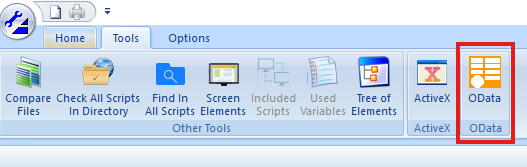
On the "Tools" tab, the "OData" button is located next to "ActiveX". Clicking it opens the OData Tool in its own window.
Browse the service catalog
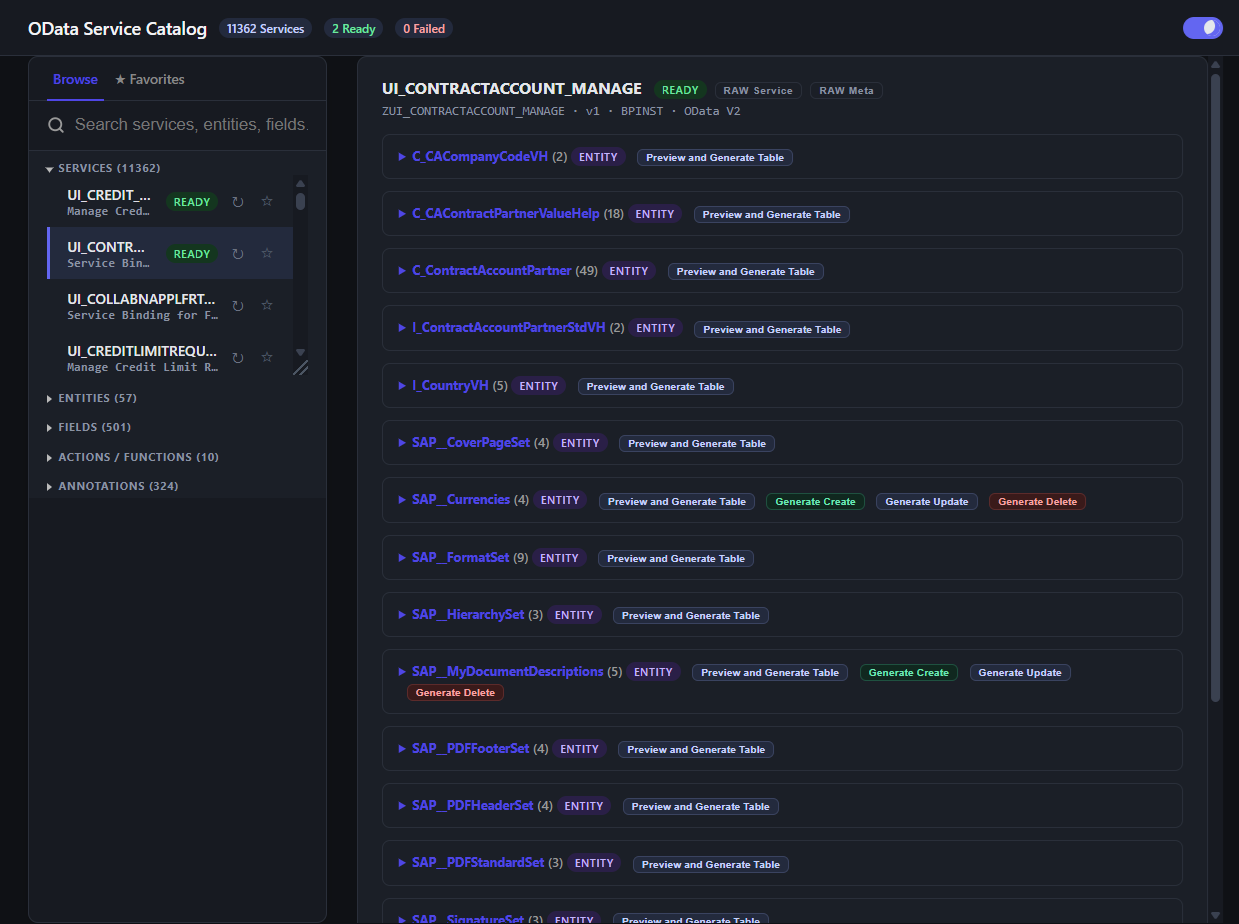
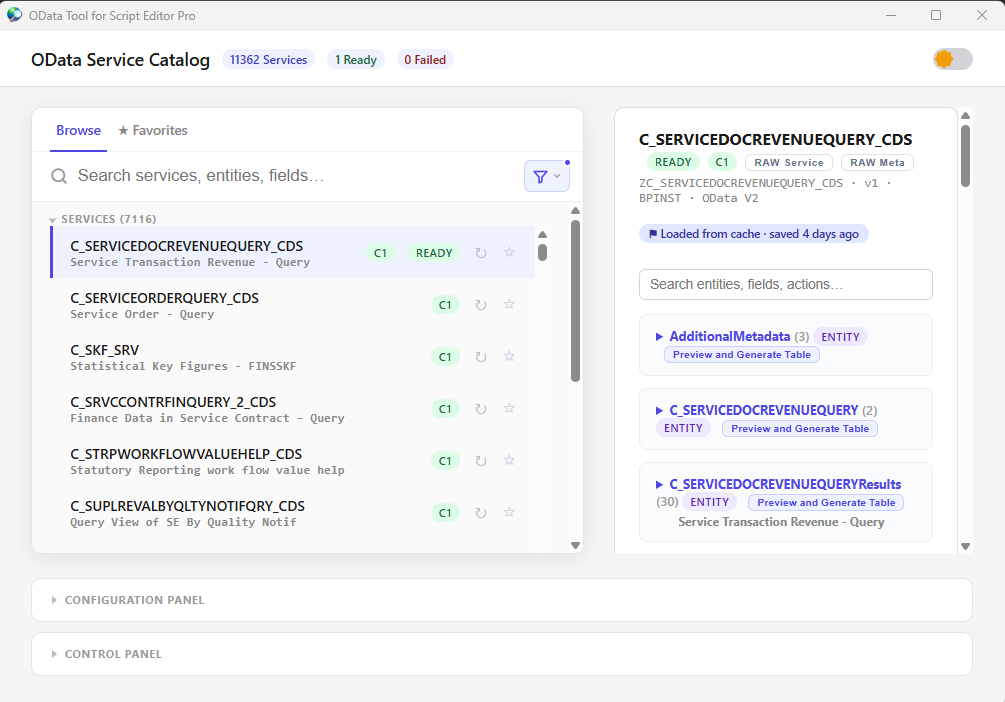
The left pane lists all OData services offered by the connected system, together with the number of entities, fields, actions/functions and annotations. Select a service to see its entity sets; each one offers "Preview and Generate Table" and, where supported, "Generate Create/Update/Delete".
Configuration and control panel
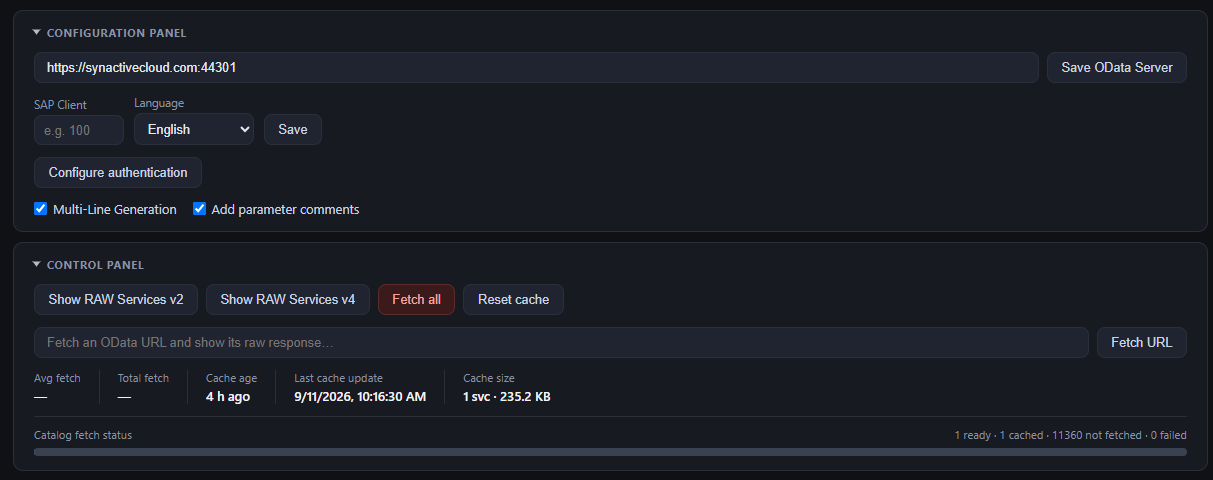
Enter the OData server URL, SAP client and language, and set up authentication. The control panel shows the catalog fetch status, the local cache (age and size), and lets you fetch a raw OData URL directly to inspect its response.
Dark mode and light mode
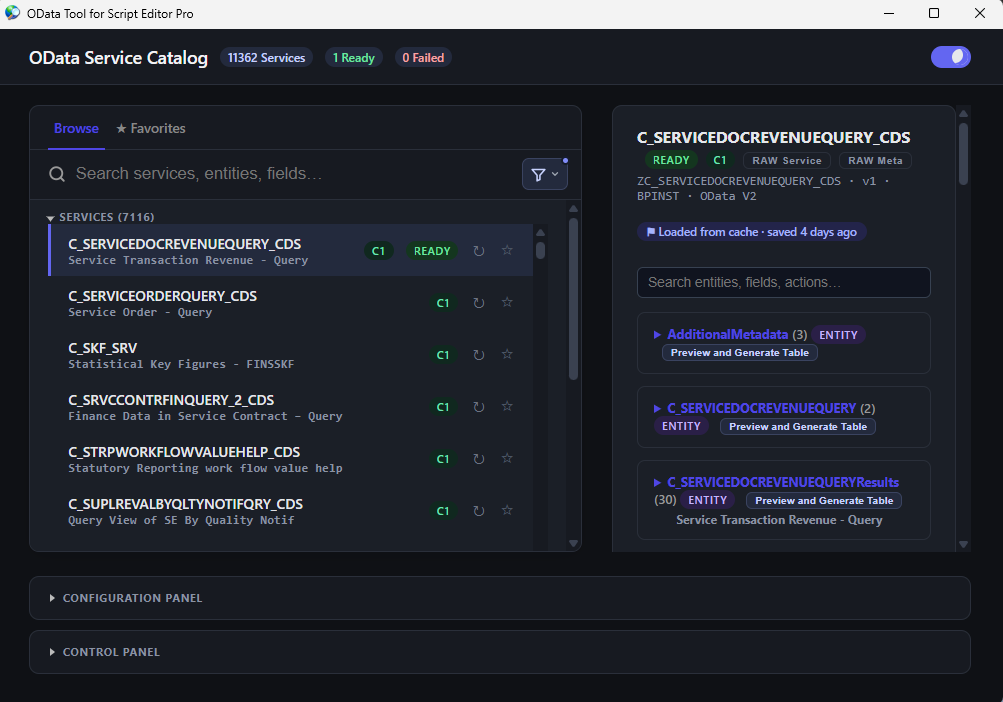
Use the switch at the top right of the OData Tool window to toggle between dark mode and light mode.
Dark mode:
Light mode:
Example: preview an entity
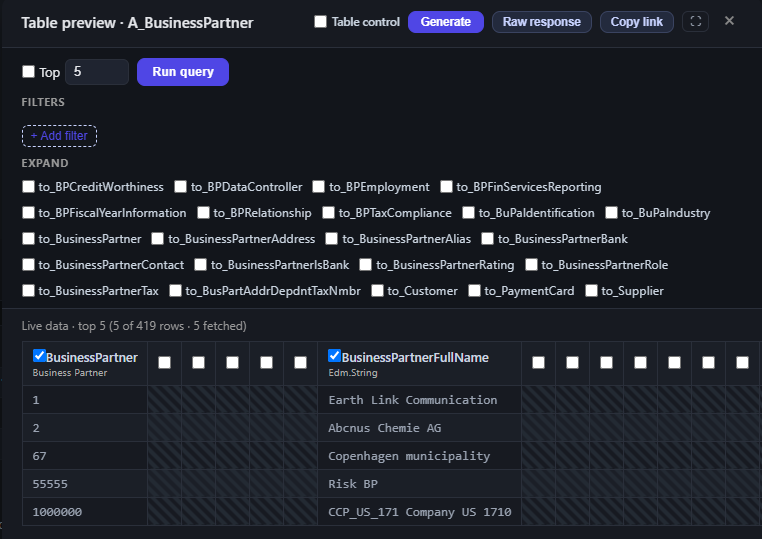
Opening entity "A_BusinessPartner" shows its fields and navigation properties. Check the columns you need, optionally an "expand", and click "Run query" to fetch live rows from the connected system before generating any code.
Example: generate the script
"Generate" writes a complete block into the script: CreateTable for the checked columns, the CallVB guinet.odata.read call with service and result already filled in, and a matching Table/Column layout to display it.
GuiXT
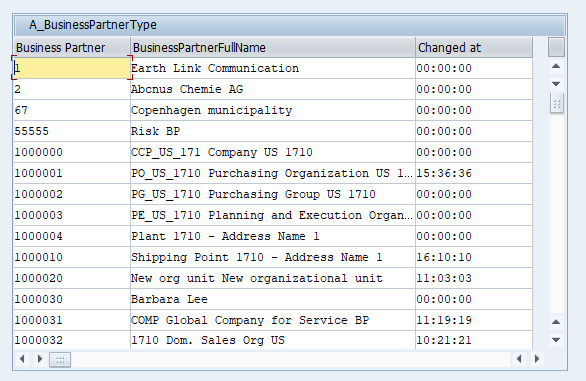
Pasted into the transaction script unchanged, the generated code displays a live Business Partner table.
Example: a value-help dropdown
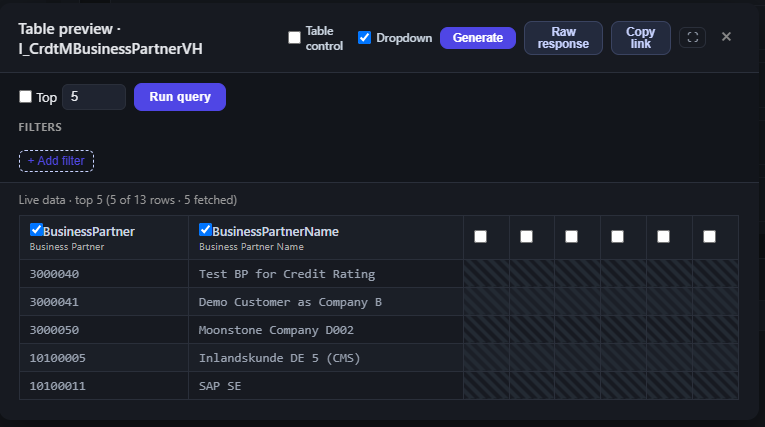
For a value-help entity such as "I_CrdtMBusinessPartnerVH", check "Dropdown" before generating so the tool produces a DropDownList instead of a table.
Example: generated dropdown script
This time the read is guarded with "if not V[...]" so it runs only once, uses cache:="file" so the list survives across sessions, appends one empty row, and ends with a DropDownList -showKeys bound to the result table.
GuiXT
del (0,0) (200,200)
// read SAP value help
if not V[I_CrdtMBusinessPartnerVHType]

CreateStructure V[I_CrdtMBusinessPartnerVHType_row]_
	BusinessPartner _ // Business Partner
	BusinessPartnerName // Business Partner Name
CreateTable V[I_CrdtMBusinessPartnerVHType] _
	include=V[I_CrdtMBusinessPartnerVHType_row]
CallVB guinet.odata.read _
	service:="sap/opu/odata/sap/UI_CREDIT_DECISION_MANAGE" && _
	"/I_CrdtMBusinessPartnerVH" _
	cache:="file"
	result:="I_CrdtMBusinessPartnerVHType"

// plus one empty entry
Clear V[I_CrdtMBusinessPartnerVHType_row]
AppendRow V[I_CrdtMBusinessPartnerVHType_row] _
	table=V[I_CrdtMBusinessPartnerVHType]

endif

// display dropdown list
Text (4,2) "Business Partner" size=18 -label
DropDownList (4,21) _
	table=V[I_CrdtMBusinessPartnerVHType] -showKeys _
	width="40" refer="V[BusinessPartner]"
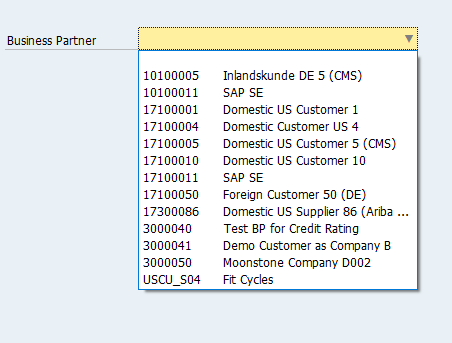
Example: the running dropdown
The Business Partner field is now filled live from SAP's own value help.