GuiXT offers two JavaScript interface options: the IE mode and the Chromium mode.
IE Mode Notation: CallJSfuncname
Built on Microsoft’s MSHTML (Trident) engine and its COM interface
Faster calls than Chromium, as calls are executed in the same process
Better debugging support for COM objects (Excel, Word) than Chromium
Microsoft guarantees MSHTML support until end of 2029.
A formal announcement will be made by Microsoft at least one year before discontinuation.
Synactive will provide detailed information as soon as a definitive date for ending MSHTML support is released by Microsoft. We expect that this date will actually be well behind 2030, since MSHTML is used throughout the Windows OS and MS Office components
Chromium Mode Notation:CallJSlibname.funcname
Built on Microsofts's WebView2 (Chromium) engine and its API.
Supports the latest JavaScript standards and modern web technologies.
Provides compatibility with current frameworks.
IdeaI for new projects, as the IE mode may be deprecated in future Windows versions.
Ensures long-term maintainability and compliance with evolving standards.
Fits better into the script directory logic of GuiXT
Recommendation:
Use Chromium mode for new projects.
Be prepared for a migration from IE mode to Chromium mode before 2030. If you want to make major further developments to your JavaScript functions before then, you should consider switching to Chromium mode beforehand.
No urgent need to modify existing JavaScript code running in IE mode at the moment, especially when you use COM Automation
Upgrading from IE mode to Chromium mode
Suggested steps:
Group your JavaScript functions into meaningful packages, e.g., String functions, Excel interfaces, Word documents, Web services, AI calls.
For each package, specify a name xxx and create an HTML file xxx.html that looks like the template file below
Copy your JavaScript functions from the previous .js files into the respective HTML files.
Copy the HTML files to your script directory.
Change the calls in your script from CallJS funcname to CallJS xxx.funcname, where xxx is the respective package.
If you use COM interfaces in a JavaScript function, for example Excel or Word Automation, a change in notation may be necessary. See the next section “COM interfaces (Excel, Word,...) in Chromium mode” for more information.
We use Chromium mode for the following examples. Unless otherwise specified, the examples can also be used in IE mode.
Sample HTML file for embedding JavaScript functions
For each package xxx of JavaScript functions, create an HTML file xxx.html with the following structure:
HTML
<!doctype html>
<html>
<head>
    <meta charset="utf-8">
    <title>GuiXT JavaScript functions, package xxx</title>
</head>
<body>
    <script>
        // JavaScript functions to be called from GuiXT scripts
        function function1() {

        }

        function function2() {
        }

        // ...
    </script>
</body>
</html>
Calling a JavaScript function
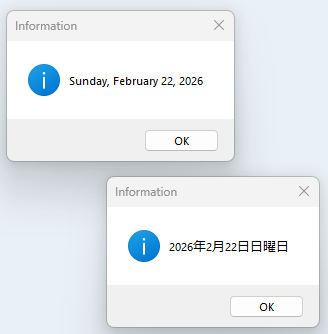
As an example, we implement a JavaScript function that returns the current date in a format that includes the day of the week and month name.
Our JavaScript package is called "jsutilities" and the name of the function is "dateTodayLong":
HTML
<!doctype html>
<html>
<head>
    <title>Example functions for CallJS</title>
</head>
<body>
    <script>
        // return current date in given language
        function dateTodayLong(language) {

            // set default language
            if (!language) language = 'en';

            var d = Intl.DateTimeFormat(language, { dateStyle: 'full' });
            return d.format(new Date());
        };

    </script>

</body>
</html>
We call our JS date function and display the result:
Since GuiXT loads the HTML code only once per SAP GUI session, you can open a new SAP GUI session with /O to test changes in the JavaScript code.
An easier option (only for Chromium mode) is to use the following ProcessingOption statement before the call:
GuiXT
ProcessingOption reloadJS="On"
This releases all HTML pages loaded by CallJS so far.
However, do not forget to remove this statement before transporting to a production system.
Debugging the JavaScript code (Chromium mode)
Use the following ProcessingOption statement before the call to invoke the Chromium Debugger:
The debugger window will appear after a short delay, and you can set breakpoints in your code and use all other debugging features:
Do not combine the options "ProcessingOption reloadJS=On" and "ProcessingOption debugJS=On," as your breakpoints will not be active immediately after reloading.
Debugging the JavaScript code (IE mode)
The easiest way to start JavaScript debugging in IE mode is to use Visual Studio’s “Attach to Process†feature.
Select the process “saplogon.exe†and choose “Script Code†in the code type dropdown.
You now have two options to run your JavaScript function in the debugger. The simplest method is to activate:
Debugging -> Break all
in Visual Studio.
Then execute your JavaScript function through the GuiXT script.
The debugger will stop at the first executable line of the function.
Alternatively, you can insert the JavaScript 'debugger' statement at the point where you want execution to pause.
WHen the debugger is active, you can:
Step through the code line by line
Inspect variables
including the MS Office automation objects
Set dynamic breakpoints
Use all other debugging tools provided by Visual Studio
Note:
If on your PC (common starting with Windows 11), you must enable script debugging directly in the Windows Registry:
When you add new parameters to a JavaScript function later, it can be inconvenient to update all existing code that calls this function.
To avoid this, you can define default values for new parameters. This means: if no value is provided when the function is called, the function will automatically use a predefined value.
You can do this by checking whether a parameter is undefined:
JavaScript
function split(s, delimiter){
  // set default delimiter
  if (typeof (delimiter) == 'undefined'){
     delimiter = ";";
  };

  // split string ...

}
There is is also a modern JavaScript way using default parameters (Chromium mode only):
Sometimes you want to call a JavaScript function with any number of arguments, without defining them explicitly in the function signature.
This can be done using the built-in 'arguments' object which contains all values passed to the function.
It behaves like an array (you can access items via arguments[0], arguments[1], etc.)
But it is not a real array, so methods like .map() or .join() cannot be used directly.
If needed, you can convert it into a real array first.
Example: The following function can be called with a variable number of strings. It returns the strings in the form of a list (x,y,...):
JavaScript
function buildList()
 {
   // array
   var a = [];

   // convert arguments list to array
   for (var i = 0; i < arguments.length; ++i)
   {
     a.push(arguments[i]);
   };

 // return list via "join"
 return "(" + a.join(",") + ")";

 }
In Chromium mode, you can use the three-dot notation (...) within a function's parameter list, called 'rest' parameters.
Rest parameters allow a function to accept an indefinite number of arguments as an array. This makes it easy to handle functions where you don't know beforehand how many values will be passed.
Syntax: function myFunction(a, b, ...restOfArgs) { ... }.
Key Rules:
A function can have only one rest parameter.
It must be the last parameter in the function definition.
It cannot have a default value.
Example:
JavaScript
function buildList(...items) {
  return "(" + items.join(",") + ")";
}
With this notation, 'items' is a real array and no manual conversion is needed.
Using the "guixt" interface object
In addition to parameter transfer and value return, GuiXT offers a special interface for exchanging information with GuiXT.
The description of the "guixt" interface object can be found in
Object GuiXT in JavaScript
As an example, we set the user's login language as the default language value in our date output function.
JavaScript
 // return current date in given language
 function dateTodayLong(language) {

     // guixt interface object
     var guixt = window.guixthost;

     // set SAP logon language as default language
     if (!language) language = guixt.get("_language2").toLowerCase();

     var d = Intl.DateTimeFormat(language, { dateStyle: 'full' });
     return d.format(new Date());
 };
Calling 'async' JavaScript functions
In modern JavaScript, functions can be declared as asynchronous by using the async keyword before the function keyword.
This is syntactically required whenever the function itself calls other asynchronous functions using await.
When working with modern Web APIs, most example code you will find is based on asynchronous processing.
Therefore, it is common to encounter async functions when integrating external JavaScript functionality into GuiXT.
This section explains what happens when an async JavaScript function is called from GuiXT, what limitations exist, and which patterns can be used to synchronize asynchronous JavaScript execution with GuiXT script processing.
Calling an async JavaScript function from GuiXT using CallJS is completely legal. However, it is important to understand the execution model:
The CallJS statement starts the JavaScript function and returns immediately to GuiXT. The JavaScript function continues to run asynchronously.
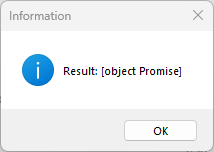
Because of this, the JavaScript function cannot directly return its result to GuiXT. Instead, an async function always returns a JavaScript Promise, which represents the future completion of the function.
GuiXT does not provide a mechanism comparable to JavaScript’s await keyword to wait for a Promise to be resolved. Therefore, the function result cannot be obtained directly through the return value of CallJS.
To continue processing in GuiXT once the JavaScript function has actually finished its work, additional communication and synchronization mechanisms are required. These are described below.
Consider the following JavaScript function:
JavaScript
async function api7() {
   return 7;
};
We call the function from GuiXT and try to display the result:
GuiXT
Clear V[result]
CallJS result = mytests.api7
Message "Result: &V[result]"
Although the JavaScript function evaluates to 7, GuiXT does not receive this value. Instead, it receives a Promise object, which cannot be evaluated by GuiXT.
A common workaround is to explicitly set a GuiXT variable from within the JavaScript function:
JavaScript
async function api7() {
  // set result
  window.guixthost.set("result", 7);
};
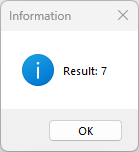
In many cases, this appears to work immediately. However, this behavior is misleading.
Why this appears to work (and why it is unreliable)
Although we stated that CallJS returns immediately, JavaScript execution is often fast enough that the function finishes before GuiXT continues with the next script line.
In that case, the variable seems to be available right away.
To demonstrate that this is a timing coincidence, let us deliberately slow down the JavaScript execution:
JavaScript
async function api7() {
  // wait 50 ms
  await sleep(50);

  // set result
  window.guixthost.set("result", 7);
};


// sleep, time in milliseconds
function sleep(time) {
  return new Promise((resolve) => setTimeout(resolve, time));
}
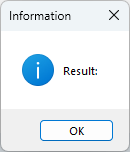
Now GuiXT reaches the Message statement before the JavaScript function has finished, and the result variable is still empty:
This clearly shows that a synchronization mechanism is required.
Synchronization Using an Indicator Variable
A simple and robust synchronization pattern is to use an indicator variable that signals completion of the JavaScript function.
JavaScript
async function api7() {

  // wait 50 ms
  await sleep(50);

  // set result
  window.guixthost.set("result", 7);

  // indicate: processing done
  window.guixthost.set("js_done", "X");
};

// sleep, time in milliseconds
function sleep(time) {
   return new Promise((resolve) => setTimeout(resolve, time));
}
GuiXT
Clear V[result]
Clear V[js_done]
CallJS  mytests.api7

// wait for JS completion
label wait_for_api7
if not V[js_done]
  ConnectHTML wait=1
  goto wait_for_api7
endif

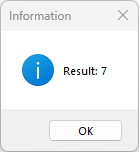
Message "Result: &V[result]"
This loop waits until the JavaScript code signals completion by setting V[js_done], and we obtain the correct result:.
Notes on ConnectHTML wait=1
The statement ConnectHTML wait=1
Waits at least the specified number of milliseconds (here: 1 ms)
Processes all pending UI events during this time
Prevents the SAP GUI window from freezing
This makes it suitable for short polling loops in GuiXT.
To avoid an infinite loop if the called function never sets the indicator variable, you can use a counter and an appropriate upper limit:
GuiXT
Clear V[result]
Clear V[js_done]
CallJS  mytests.api7

// wait for JS completion
Set V[k] 0
label wait_for_api7
if not V[js_done]
  ConnectHTML wait=1
  Set V[k] &V[k] + 1
  if V[k<1000]
    goto wait_for_api7
  endif

  // after a wait time of > 1 sec we terminate with an error message
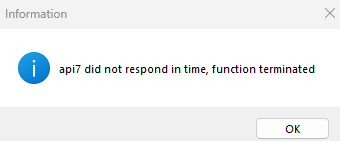
  Message "api7 did not respond in time, function terminated"
  goto my_error_handling

endif

Message "Result: &V[result]"
Alternative approach: Callback into GuiXT
Another synchronization method avoids polling loops altogether. Instead, the JavaScript function explicitly calls a GuiXT script once processing is complete:
JavaScript
async function api7() {
 // wait 50 sec
 await sleep(50);

 // process result
 window.guixthost.process("show_result", 7);
};
GuiXT
CallJS mytests.api7
GuiXT show_result
Parameter result
Message "Result: &V[result]"
Return
A disadvantage of this approach is that the user can still interact with the SAP GUI screen while the JavaScript function is running.
Any final processing triggered by the callback should therefore verify that the application state is still valid.
To improve the user experience, it is recommended to display intermediate “processing” messages while the JavaScript operation is in progress. These are described in the next section of the documentation and help indicate that the user-triggered action has not yet finished.
Handling exceptions in the asynchronous function
To demonstrate what happens when an exception occurs in an asynchronous function, we deliberately add a throw statement in the called JavaScript function:
JavaScript
async function api7() {

  // wait 50 ms
  await sleep(50);

  // produce exception
  throw new Error("Web Server xyz not reached");

  // set result
  window.guixthost.set("result", 7);

  // indicate: processing done
  window.guixthost.set("js_done", "X");
};
Because the exception terminates the function execution, the indicator variable js_done is never set.
If we use the polling loop, we receive an error message after a timeout:
If we use the callback approach, nothing happens at all.
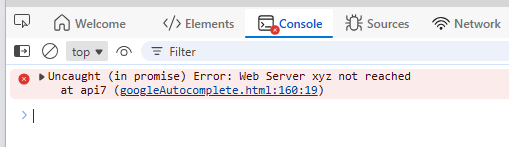
In the JavaScript console, however, we can see the exception message "Web Server xyz not reached":
To make this error visible in GuiXT, we wrap the async function call in a try...catch block and explicitly forward the error message:
GuiXT
Clear V[result]
Clear V[js_done]
Clear V[js_error]

CallJS  mytests.api7_wrapper

// wait for JS completion
Set V[k] 0
label wait_for_api7
if not V[js_done]
  ConnectHTML wait=1
  Set V[k] &V[k] + 1
  if V[k<1000]
    goto wait_for_api7
  endif

  // after a wait time of > 1 sec we terminate with an error message
  Set V[js_error] "api7 did not respond in time, function terminated"
endif

if V[js_error]
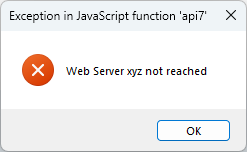
  Message "&V[js_error]"  _
     title="Exception in JavaScript function 'api7' " type="E"
else
  Message "Result: &V[result]"
endif
JavaScript
async function api7_wrapper() {

    try {
      await api7();

    } catch (err) {
      console.error("Exception in api7:", err);
      window.guixthost.set("js_error", err.message);
    }

    // indicate: processing done
    window.guixthost.set("js_done", "X");

};


async function api7() {

    // wait 50 sec
    await sleep(50);

    throw new Error("Web Server xyz not reached");

    // set result
    window.guixthost.set("result", 7);

};

// sleep, time in milliseconds
function sleep(time) {
    return new Promise((resolve) => setTimeout(resolve, time));
}
It is also possible to handle the timeout in JavaScript instead of GuiXT.
Use the JavaScript feature Promise.race to start both api7 and a timeout timer in parallel.
If the timer wins the race, return an error message. If possible, cancel api7 before returning by using an AbortController.
For implementation details, refer to the JavaScript documentation.
Recalling GuiXT from JavaScript
With guixt.process() you can call a GuiXT function from JavaScript. This is useful in the following situations:
- Calling GuiXT at the end of an 'async' JavaScript function in order to continue GuiXT processing
- Displaying a status message during long‑running JavaScript processing
- Reading data using an RFC call
In the example below, we demonstrate how to display a status message. We simulate a long‑running operation using a JavaScript sleep function.
GuiXT
CallJS jsutilities.webservicedemo
GuiXT
// process_statusmessage.txt
Parameter option
Parameter value ""

if V[option=remove]
  StatusMessage -remove
  Return
endif

if V[option=title]
  StatusMessage title="&V[value]"
  Return
endif

if V[option=addstring]
  StatusMessage addString="&V[value]"
  Return
endif

Return
JavaScript
// Calling a web service with status messages in GuiXT
async function webservicedemo() {

    // guixt interface object
    var guixt = window.guixthost;

    guixt.process("statusmessage", "title", "Web Service active");
    guixt.process("statusmessage", "addstring", "We start..");
    await sleep(1000);

    guixt.process("statusmessage", "addstring", "Sending data...");
    await sleep(1000);

    guixt.process("statusmessage", "addstring", "Receiving results...");
    await sleep(1000);

    guixt.process("statusmessage", "addstring", "Done");
    await sleep(1000);

    guixt.process("statusmessage", "remove");

};

// sleep, time in milliseconds
function sleep(time) {
    return new Promise((resolve) => setTimeout(resolve, time));
}
Handling GuiXT tables in JavaScript
The recommended method for processing GuiXT table and structure variables in JavaScript is to read them in with guixt.Get() and write them back with guixt.Set().
GuiXT automatically uses a JSON format for transfer, which can be conveniently used in JavaScript for conversion to and from JavaScript objects.
We will demonstrate the procedure using a small example in which we call a JavaScript routine to filter the rows of a table; in our case, we only select customers with the location "Vancouver":
GuiXT
// customer table
Table (1,1) (15,86) name="customers" fixedColumns=4
Column "Account" size=10 name="account"
Column "Name" size=30 name="name"
Column "City" size=20 name="city"
Column "Country" size=20 name="country"

// filter city Vancouver
PushButton (1,93) "Vancouver only" process="filter_customers.txt"
  Using city = "Vancouver"
GuiXT
// filter_customers.txt
Parameter city

// pass the table name and the city to our JavaScript filter function
CallJS jsutilities.tabledemo "customers" "&U[city]"

Return
JavaScript
function tabledemo(ctabname, filtercity) {

    // GuiXT interface object
    var guixt = window.guixthost;

    // read GuiXT table in JSON format
    var ctabjson = guixt.Get(ctabname);

    // transform it into a JavaScript object
    var ctab = JSON.parse(ctabjson);

    // filter the array by the given city name
    var ctabnew = ctab.filter((customer) => customer.city == filtercity);

    // set the new GuiXT table content
    guixt.Set(ctabname, JSON.stringify(ctabnew));
}
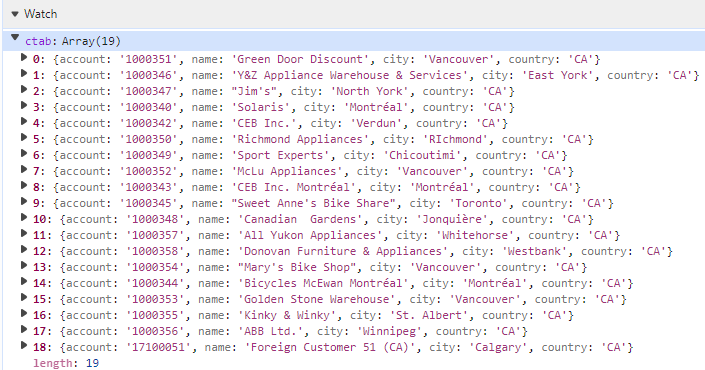
In the "Watch" window of the Chromium debugger you can display the table content during the execution of the JavaScript function.
The GuiXT table variable is transformed into a JavaScript array where each array item corresponds to a GuiXT row:
The entire JavaScript function can also be written in a single line, which, however, is unlikely to please those responsible for the code later on:
window.guixthost.Set(ctabname, JSON.stringify(JSON.parse(window.guixthost.Get(ctabname)).filter((customer) => customer.city == filtercity)));
tml>