This document describes a typical procedure for configuring the GuiXT RFC user and the required authorizations when using the SAP MIME Repository as a storage location. It also explains how to identify the permissions needed to call additional function modules, such as BAPIs.
We assume that the GuiXT configuration, the RFC user, roles, and authorizations are initially set up in a development system and then transported to the test and production systems.
A generic RFC user is generally best suited for standard GuiXT functions, such as reading files from the SAP MIME repository or retrieving the user role list for interpreting the GuiXT user catalog.
When your script calls BAPIs or other SAP function modules, using the -currentuser option of the Call statement establishes the RFC connection with the credentials of the currently logged‑in user.
In this case, the authorization check is performed against the actual user—not the RFC user. Especially for BAPIs or modules that update SAP data, the -currentuser option is essential;
otherwise, the SAP system would store the RFC user name instead of the real user name in the updated objects.
If Single Sign-On is used, it is best to execute all RFC functions in the context of the actual user.
In this scenario, you do not create a separate RFC user. Instead, you create only a SAP role containing the required authorizations for general GuiXT functions (e.g., SAP MIME Repository access)
and assign this role to all GuiXT users. In the GuiXT configuration you then set the RFC user name and password to "*", indicating that the RFC connection should use the current user’s credentials or SSO login.
For security reasons, if you work with a generic RFC user, ensure that this user has strictly limited permissions - for example, only GuiXT script access and similar non‑critical actions.
The RFC user should not be able to read sensitive SAP tables which would increase the risk of misuse.
Local guixt.ini file
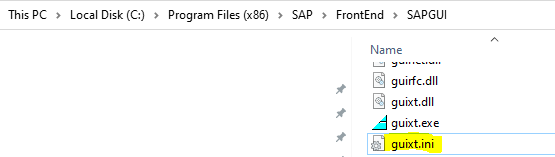
The local guixt.ini file is stored in the SAP GUI folder on each individual PC
Local guixt.ini file (generic RFC user)
// Ignore GuiXT settings in registry
IgnoreRegistry Yes

// Start with hidden GuiXT window
StartHidden Yes

// RFC connection parameters
RfcUser GUIXTRFC
RfcPasswordEnc HNFAHSOIHWIUFHIEUHEOQKFMAGADZZFWFVDUAJ
RfcCurrentClient Yes

// continue with central guixt.ini in SAP MIME repository
SwitchTo SAPMR:SAP/BC/BSP/GUIXT/PUBLIC/GUIXT.INI
This is the guixt.ini version if you prefer to work with the actual user instead of a generic RFC user, including a typical SSO setting:
Local guixt.ini file (acutal user)
// Ignore GuiXT settings in registry
IgnoreRegistry Yes

// Start with hidden GuiXT window
StartHidden Yes

// RFC connection parameters
RfcUser *
RfcPassword *
RfcCurrentClient Yes
RfcConnect  SNC_MODE=1 SNC_PARTNERNAME="p:CN=&database, O=myCompany, C=XX"

// continue with central guixt.ini in SAP MIME repository
SwitchTo SAPMR:SAP/BC/BSP/GUIXT/PUBLIC/GUIXT.INI
Local guixt.ini file on an individual PC, 32-bit SAP GUI:
Central guixt.ini file
Our central guixt.ini file is stored in the SAP MIME repository of the corresponding system.
Use the SAP transport system to transport it from a development system to Quality/Test and Production.
Central guixt.ini file
// Active components
Component GuiXT
Component InputAssistant
Component Controls

// License file in SAP MIME repository
LicenseFile SAPMR:SAP/BC/BSP/GUIXT/PUBLIC/LICENSEFILE.TXT

// System specific key
Key CompanyName_nnn.D41.etggttrhloex
Key CompanyName_nnn.Q41.sjduurrhloex
Key CompanyName_nnn.P41.owkmnfrhloex

// User catalog
UserCatalog SAPMR:SAP/BC/BSP/GUIXT/PUBLIC/USERCATALOG.TXT

// Further options
Replication Yes // File cache active
HelpViewDirectory SAPMR:SAP/BC/BSP/GUIXT/PUBLIC/HELPVIEWS
NoLanguageKey Yes // No language key in script file name
TextEditor C:\guixt\guixteditor.exe // Script editor (for developers only)
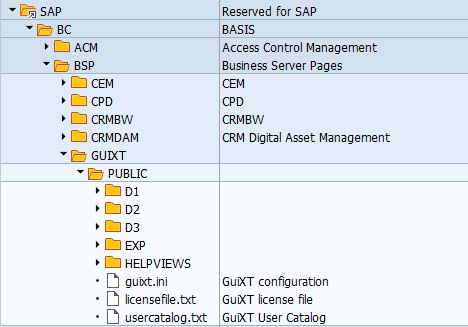
In the SAP MIME Repository, the files may look as follows:
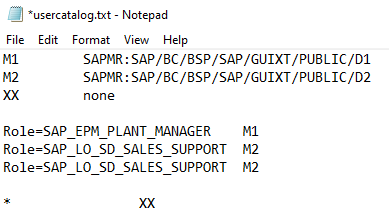
A typical user catalog, based on user roles:
Creating the RFC user and encrypting the password
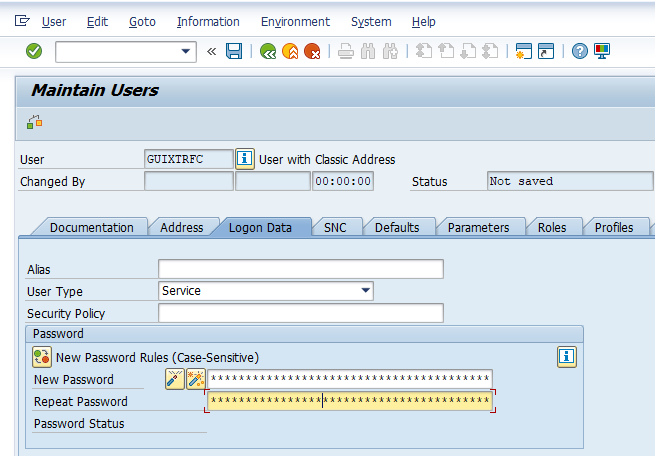
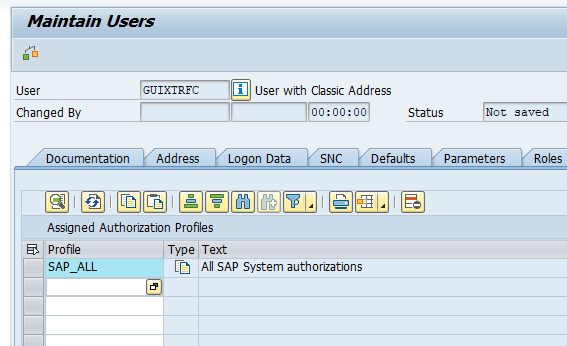
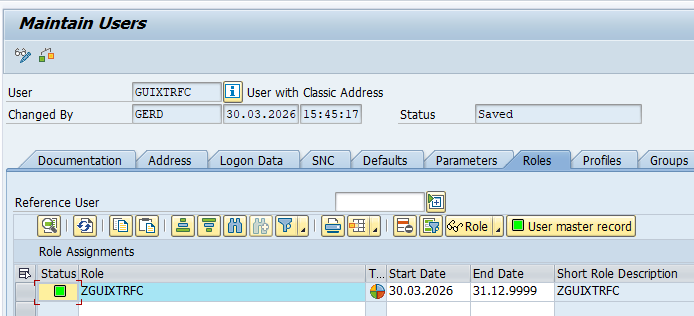
Create the generic RFC user in the SAP system using transaction SU01.
The user name (e.g., GUIXTRFC) can be chosen freely.
Set the user type to Service so that the password does not expire, which is the recommended setting for a technical RFC user.
In a development system, start with "SAP_ALL" authorizations or a role which gives you full RFC rights.
We will restrict the RFC user rights later on, creating a suitable role.
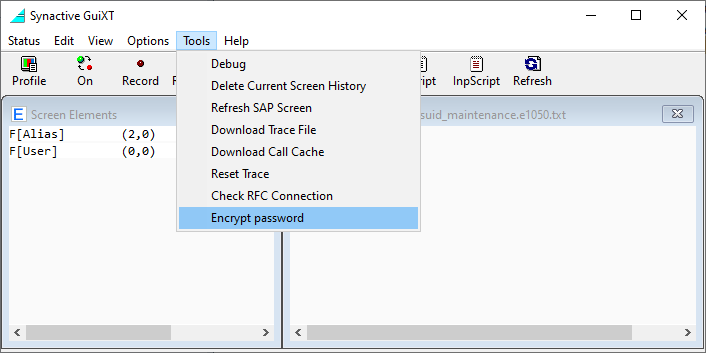
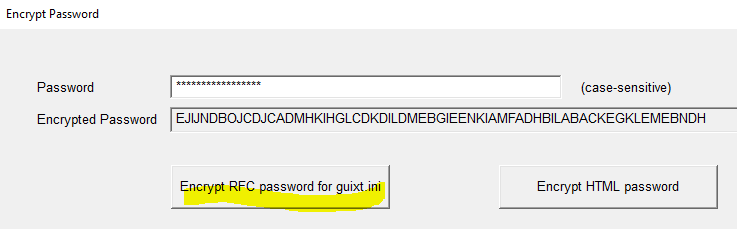
Logon to an SAP system (any system), with GuiXT activated, and encrypt the RFC password in the GUiXT window:
Copy the encrypted password into the local guixt.ini file.
If all files have been stored in the SAP MIME Repository and the RFC user has been created, log off from all SAP systems so that the GuiXT window closes.
Then log on again to verify the configuration, still using the RFC user with full authorizations.
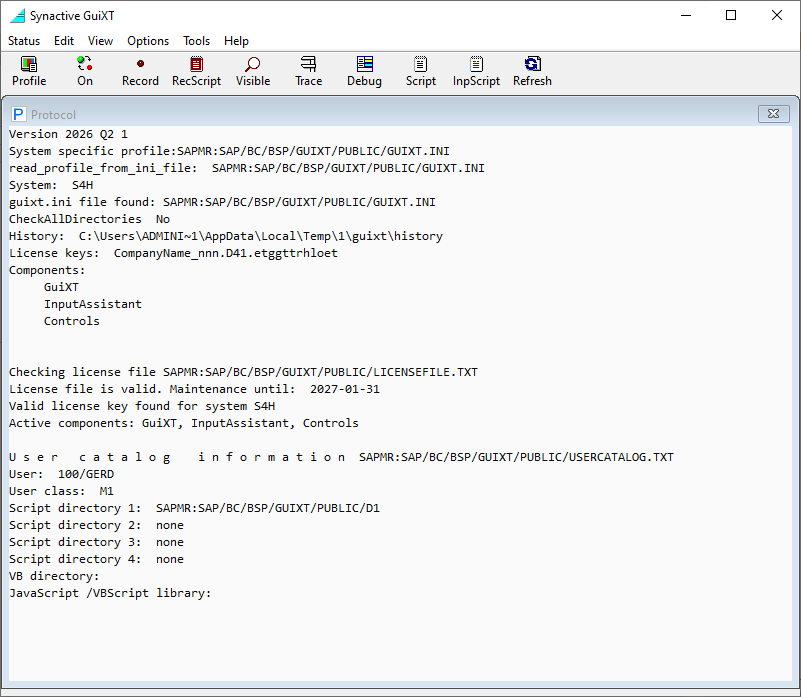
In the GuiXT window, choose View → Protocol to check for any error messages.
If any error is shown, use the check list in our Tips&Tricks section:
Central guixt.ini from SAPMR
Tracing the SAP authority checks
Using SAP transaction ST01 or STAUTHTRACE, you can identify the user authorizations required for GuiXT functions.
In this section, we demonstrate the typical procedure using transaction ST01. The authorization trace is also useful for detecting any missing authorizations.
In the next section, we will create a user role based on the results of this trace.
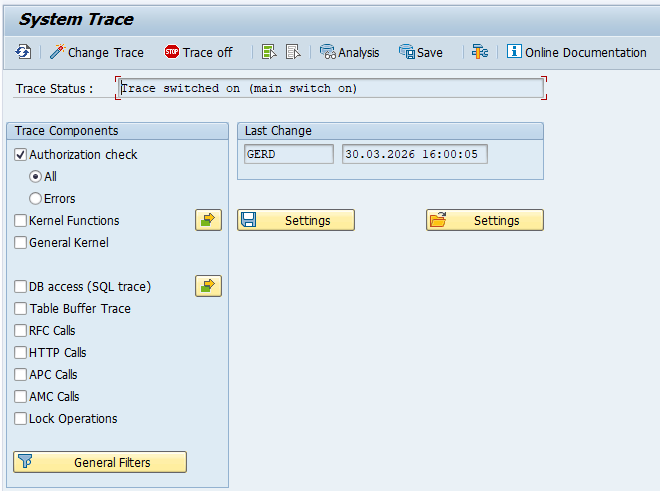
Switch on the authority trace in transwaction ST01:
Then logoff from the system and logon again in order to capture all initial authority checks.
Execute the transactions where you call BAPI calls or other function modules in you scripts.
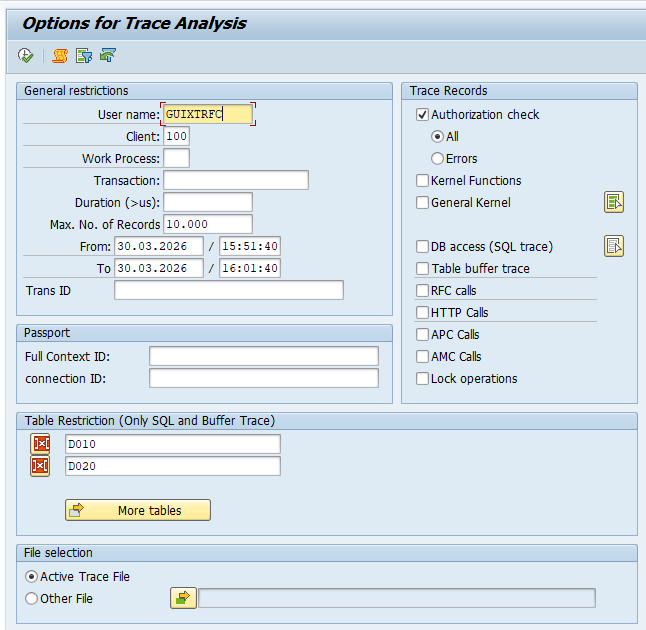
Then open transaction ST01 again and click on "Analysis". Enter the RFC user name.
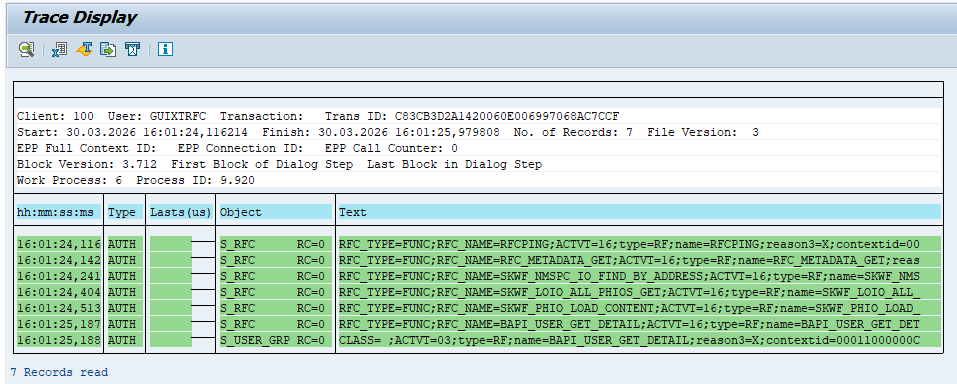
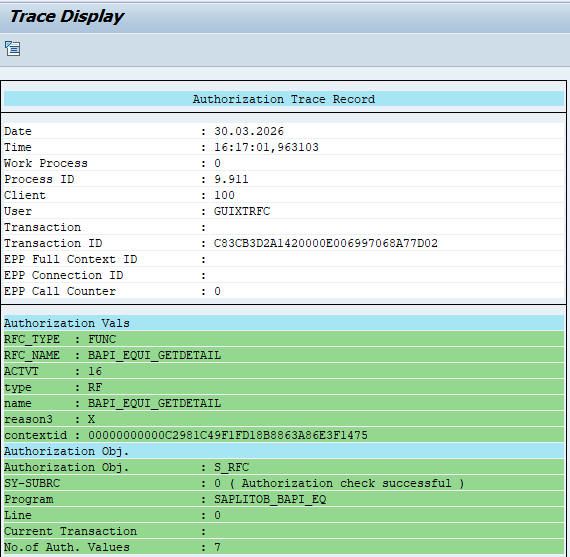
You now see a list of all SAP authority checks:
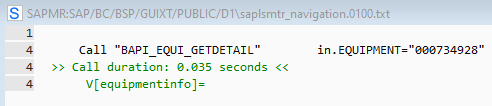
If a BAPI call is executed within one of your GuiXT scripts, you will see a corresponding entry for the function module in the trace.
In some cases, the function module performs additional authorization checks, which will also appear in the trace.
Clicking on a trace line show further details:
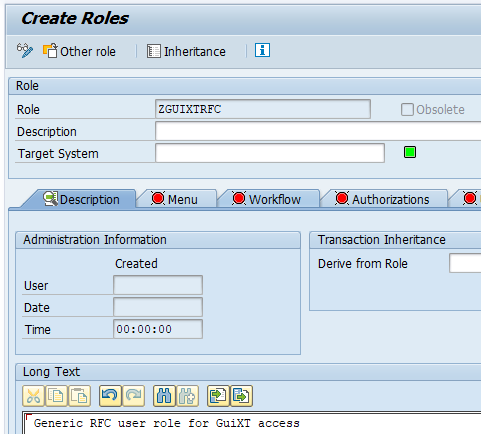
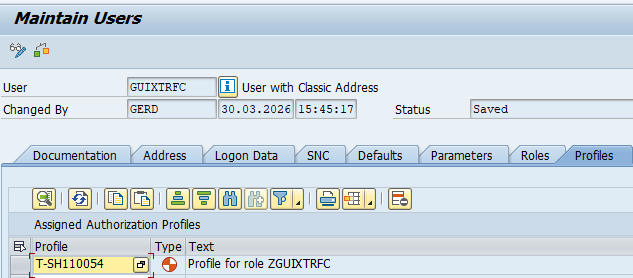
Generating an appropriate RFC user role
In SAP transaction PFCG, you can create or update authorizations using trace data from ST01 (System Trace) or STAUTHTRACE (Authorization Trace). This process allows you to import
the specific authorization field values recorded during the trace.
This approach is convenient when you call function modules, e.g. BAPIs, in your scripts, since they can include authority checks of their own.
Step 1: Perform the Trace as explained in the previous section.
Step 2: Import Authorization Values
in transaction PFCG
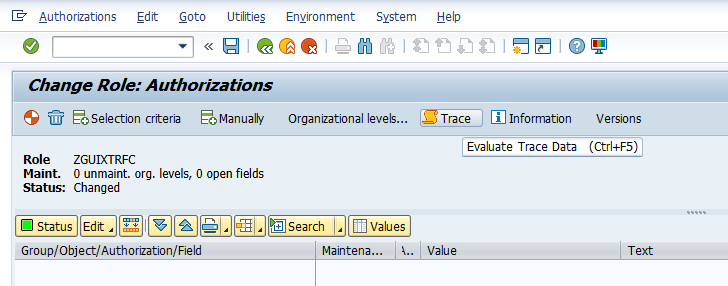
Go to the Authorizations tab in PFCG and select Change Authorization Data.
Locate the authorization object you want to maintain.
Click the Trace icon
Provide the trace details (User, Time) and select Evaluate.
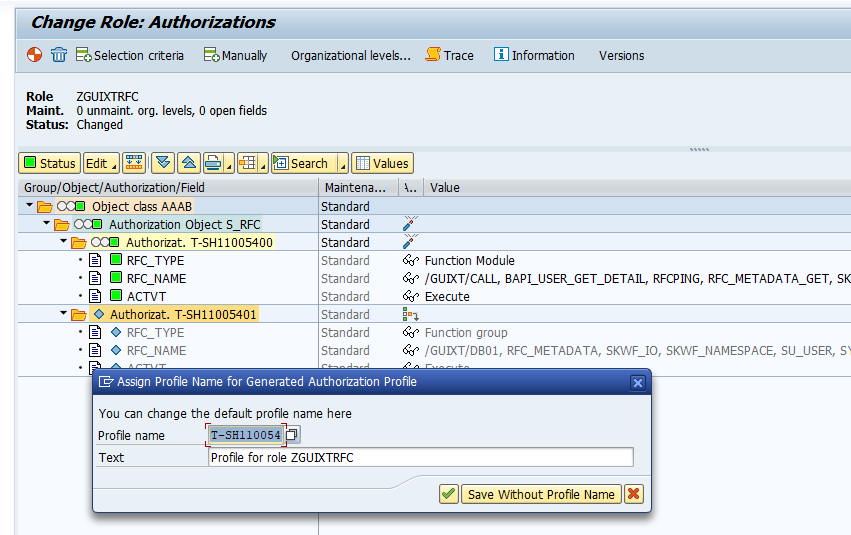
Select the desired values from the trace results and choose Transfer to pull them into the role.
Save and Generate
Check again and add any missing authorization
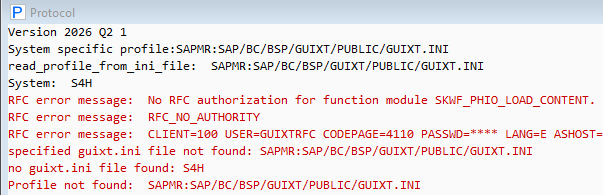
If any authorization is still missing, the GuiXT "Protocol" window will contain an error message:
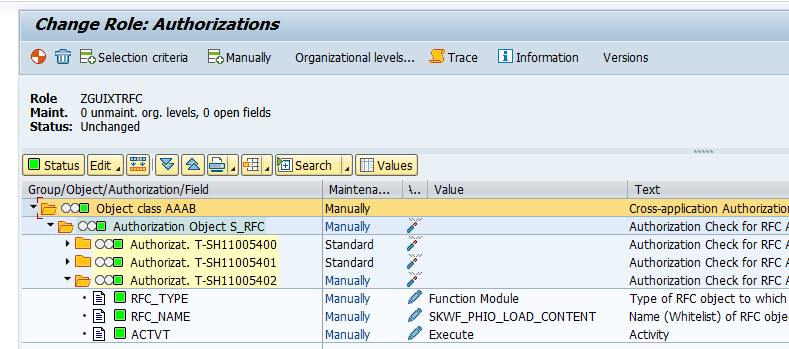
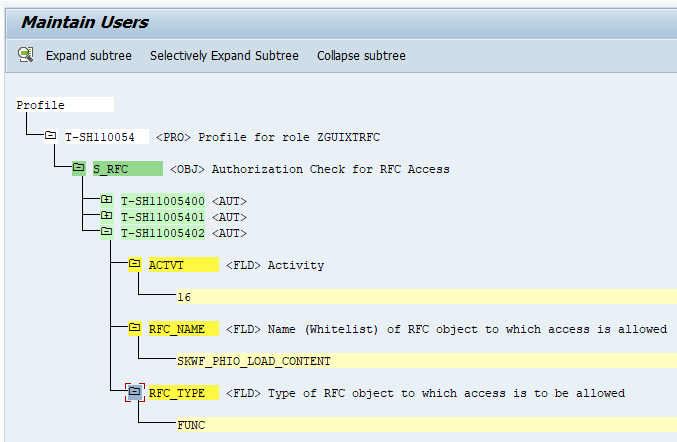
You can then add the missing authorization manually in the RFC user profile: