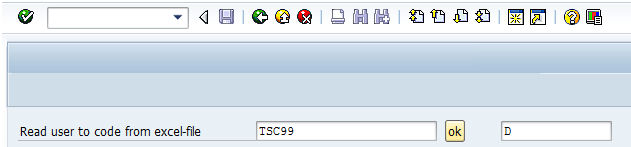
We have a duty roster that maps malicious codes to the responsible employee. We want to determine an employee according to the code that has been typed in.
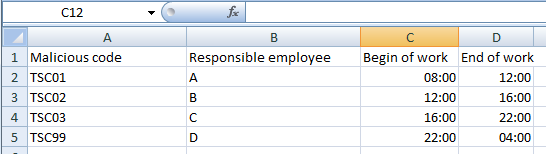
This tutorial shows how to read data from an excel worksheet and
display the result on the SAP
screen.
We have a duty roster that maps malicious codes to the responsible employee.
We want to determine an employee according to the code that has been typed in.
We add a new inputfield, a pushbutton and an outputfield to
the SAP screen:
GuiXT
inputfield (20,1) "Read user to code from excel-file" (20,35) _
    size="25" name="code"  default="TSC99"  -upperCase

inputfield (20,70) size="15" name="usertocode" _
    -upperCase -noLabel
pushbutton (20,62) "ok" _
    process="read_excel_va03.txt"
In the
InputScript "read_excel_va03.txt" we call a .NET (VB/C#) function and pass
to it the
name of the file and the code as a parameter:
GuiXT
callvb utilities.exceldotnet.TestReadCellsExcel _
    "D:\Excel\duty_rota.xlsx" "&V[code]"
return

using guinet;
using Microsoft.Office.Interop.Excel;


public class exceldotnet
{
    public string TestReadCellsExcel(
        string filename,
        string code)
    {
        string returncode = "1";
        Application oXL = null;
        guixt g = new guixt();

        try
        {
            Workbook oWB;
            dynamic oSheet;

            oXL = (Application)
                System.Activator.CreateInstance(
                    System.Type.GetTypeFromProgID(
                        "Excel.Application"));
            oXL.Visible = false;

            oWB = oXL.Workbooks.Open(filename);
            oSheet = oWB.ActiveSheet;

            Range range = oSheet.UsedRange;
            int c = 1;

            foreach (Range r in range.Rows)
            {
                object cellValue =
                    oSheet.Cells(c, 1).Value;

                if (cellValue.ToString() == code)
                {
                    object userValue =
                        oSheet.Cells(c, 2).Value;
                    g.SetVariable(
                        "usertocode",
                        userValue.ToString());
                    returncode = "0";
                    break;
                }
                c++;
            }
        }
        catch
        {
            oXL.ActiveWorkbook.Close(false);
            oXL.Quit();
            return "Exception";
        }

        oXL.ActiveWorkbook.Close(false);
        oXL.Quit();

        return returncode;
    }
}